How to Play Pokémon Champions on PC Right Now
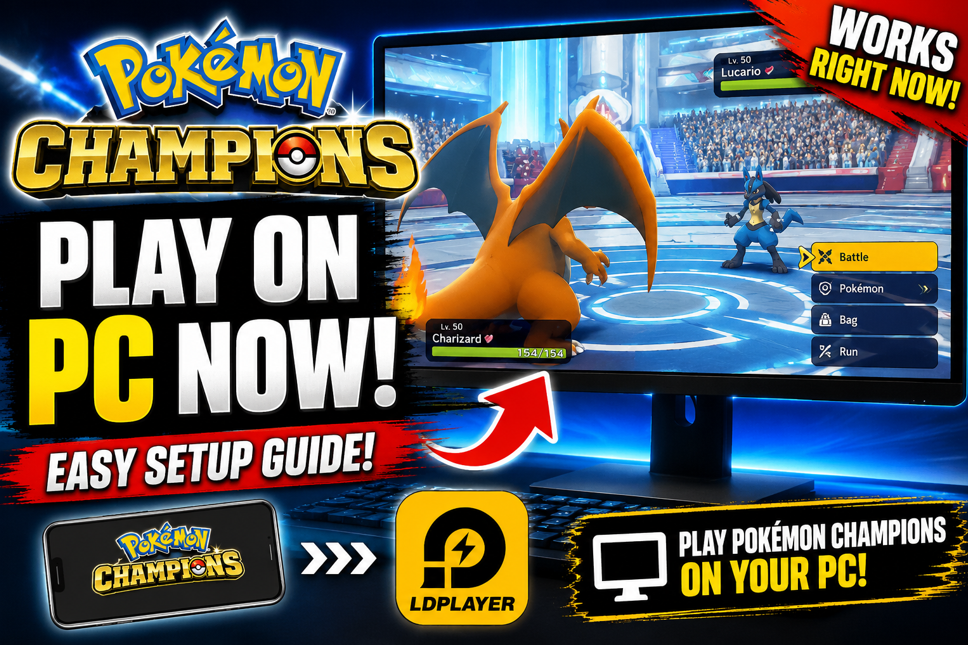
Pokémon Champions is now available on mobile devices, which means players can finally access the Android version of the game through Google Play. Officially, Pokémon Champions supports Nintendo Switch, Nintendo Switch 2, iOS, and Android. There is currently no dedicated native Windows PC client, but PC players still have a practical option: running the Android version through an emulator such as LDPlayer. This guide explains how to play Pokémon Champions on PC right now using LDPlayer. The process is simple: download LDPlayer, install it on your Windows PC, open the Google Play Store inside the emulator, sign in with your Google account, download Pokémon Champions, and launch the game. Once everything is installed, you can play Pokémon Champions from your PC with a larger screen, easier recording, and a more convenient setup for content creation. This article is based on our quick video guide, which walks through the full setup visually. You can watch the video below or follow the written steps in this guide.
Can You Play Pokémon Champions on PC?
Yes, you can play Pokémon Champions on PC, but not through an official Windows version. The official Pokémon Champions platforms are Nintendo Switch, Nintendo Switch 2, iOS, and Android. The mobile version launched through the App Store and Google Play on June 17, 2026, which is what makes PC emulator play possible. To play on PC, you need to install an Android emulator. An emulator creates an Android environment on your Windows computer, allowing you to access the Google Play Store and install mobile apps. LDPlayer is one of the easiest options for this because it is designed specifically for Android gaming on PC and already has a Pokémon Champions page. This is not the same as an official PC release. You are still playing the Android version of Pokémon Champions, just through a PC-based Android emulator. For many players, that is enough. If you want a bigger screen, easier recording, or a more comfortable setup, LDPlayer is currently one of the simplest ways to get started.
Why Use LDPlayer for Pokémon Champions?
LDPlayer is useful because it gives Windows users a way to run Android games on PC. For Pokémon Champions, that means you can use your monitor, keyboard, mouse, recording software, Discord, browser tabs, and other tools at the same time. This is especially helpful for content creators who want to record guides, stream gameplay, or capture clean footage without relying on phone screen recording. Another advantage is convenience. Playing on a phone can drain battery, heat up your device, or feel cramped during longer sessions. On PC, you can keep the game open while checking team data, tier lists, matchup notes, or Discord discussions. For a competitive game like Pokémon Champions, that kind of setup is very useful. LDPlayer also advertises emulator features such as custom controls, multi-instance support, macros, and operation recording. However, players should be careful here. For normal manual play, an emulator is mainly a convenience tool. Do not use automation, macros, scripts, or multi-instance farming to gain an unfair advantage. Keep your setup simple and play manually.
Step 1: Download LDPlayer
The first step is to download LDPlayer on your Windows PC. Go to the official LDPlayer website and download the current version of the emulator. Avoid random third-party download sites, because emulator installers from unofficial sources can include unwanted files or outdated versions. Once the installer is downloaded, open it and follow the installation steps. The process is similar to installing any normal Windows program. Choose the installation location, wait for the setup to finish, and then launch LDPlayer. If your PC asks for permission during installation, confirm that you are installing the correct file from LDPlayer’s official website. After installation, LDPlayer should open to an Android-style home screen.
Step 2: Launch LDPlayer
After installation, open LDPlayer from your desktop or Start Menu. The emulator may take a little time to boot for the first time. This is normal. Once it loads, you should see an Android interface with access to apps, settings, and the Google Play Store. Before downloading Pokémon Champions, make sure LDPlayer is running smoothly. If the emulator feels slow, you may need to adjust performance settings. For most modern PCs, the default settings should be fine, but older systems may need lower resolution or fewer allocated resources. You do not need complicated settings to start. The goal is simply to launch the emulator, open the Play Store, and install Pokémon Champions.
Step 3: Open the Google Play Store
Inside LDPlayer, open the Google Play Store. Since Pokémon Champions is distributed on Android through Google Play, this is the easiest and cleanest way to install the game. The first time you open the Play Store, you will need to sign in with a Google account. Use the same Google account you normally use for mobile apps, or use a dedicated account if you prefer keeping emulator activity separate from your main phone setup. After signing in, the Play Store should work like it does on an Android phone. You can search for apps, install games, and update them normally.
Step 4: Download Pokémon Champions
Search for “Pokémon Champions” in the Google Play Store inside LDPlayer. Once you find the official app, open the store page and click Install. Wait for the download and installation to complete. Because Pokémon Champions is a mobile game, installation time depends on your internet speed and PC performance. Once the app is installed, it should appear on the LDPlayer home screen or app drawer. Do not download APK files from unofficial websites unless you fully understand the risks. The safest and simplest method is to use the Google Play Store inside LDPlayer.
Step 5: Launch Pokémon Champions on PC
After Pokémon Champions is installed, click the app icon inside LDPlayer to launch the game. The first launch may take longer because the game may need to download additional data or complete setup. If you already play Pokémon Champions on Nintendo Switch or another device, pay close attention to account linking. Pokémon Champions has warned players that linking with a Nintendo Account is required if you want to use the same account as the Nintendo Switch version, and the linking step should be completed when first launching the mobile version. Skipping this step can create problems later. Once the game finishes loading, you should be able to play Pokémon Champions on your PC through LDPlayer.
Recommended PC Setup Tips
- Use the Google Play Store inside LDPlayer instead of unofficial APK downloads.
- Keep LDPlayer updated.
- Keep Pokémon Champions updated through Google Play.
- Use a stable internet connection.
- Lower emulator resolution if performance feels slow.
- Close heavy background apps while recording or playing.
- Avoid macros, automation, scripts, and multi-instance abuse.
- Link the correct account when first launching the game.
- Restart LDPlayer if the game gets stuck on loading.
- Use windowed mode or full screen depending on your recording setup.
Is Playing Pokémon Champions on PC Safe?
Playing through LDPlayer means you are running the Android version of Pokémon Champions in an emulator. For normal manual play, this is mainly a convenience setup. Many players use emulators to play mobile games on PC, especially for recording and streaming. However, it is important to understand the difference between normal emulator use and abusive behavior. LDPlayer includes features such as multi-instance and macros, but that does not mean you should use them in Pokémon Champions. Any automation, scripting, account farming, or behavior designed to gain an unfair advantage could put your account at risk. The safest approach is simple: use one account, install the game through Google Play, play manually, do not automate actions, and do not use emulator tools to bypass normal gameplay systems. Treat LDPlayer as a way to play on a larger screen, not as a way to exploit the game.
Why PC Is Useful for Content Creators
For YouTube creators, streamers, and competitive players, playing Pokémon Champions on PC is extremely useful. It makes recording easier, improves audio and video control, and lets you manage everything from one workspace. You can keep OBS, Discord, simbozz.gg, tier lists, team notes, and the game open at the same time. This is much more comfortable than constantly switching between apps on a phone. It also makes it easier to create guides, record battles, test teams, and capture clean footage for thumbnails or strategy breakdowns. That is why many creators prefer PC setups whenever possible. Even though Pokémon Champions does not currently have a native Windows client, LDPlayer gives creators a workable solution right now.
Final Thoughts
Playing Pokémon Champions on PC is currently one of the easiest ways to make the game more comfortable, especially for content creators and competitive players. Since the mobile version is available through Google Play, LDPlayer allows Windows users to install and run the Android version directly on PC. The setup is simple: download LDPlayer, open it, sign in to the Google Play Store, install Pokémon Champions, and launch the game. That is all most players need. Just remember that this is not an official native PC version. Use the emulator responsibly, avoid automation, and make sure you link your account correctly when launching the game for the first time. Used properly, LDPlayer is a convenient way to play Pokémon Champions on a larger screen while keeping your full PC setup available for recording, streaming, Discord, and strategy research.
Got questions?
Drop into the Discord — most beginners get a deck-list reply within an hour.
Join the Discord